
If you’re attending the convention of Bloom and Gloom, you might want to encode NFC cards. Here’s a step-by-step guide on how to set up your NFC cards using the NFC Tools app:
*Your mobile device must have the NFC function to work.
*These example pictures is the Android version of NFC Tools. The iOS version follows the same steps.
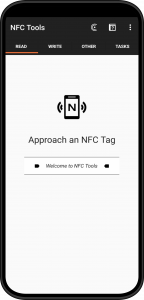
Step 1:
Download and install the NFC Tools app on your smartphone from either the App Store or Google Play Store.
Step 2:
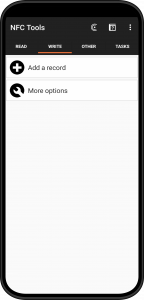
Open the NFC Tools app and tap on the “Write” button, which will take you to the records page.
Step 3:
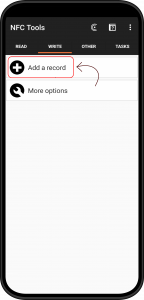
Select the “Add a record” option to start
Step 4:
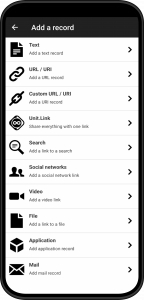
Choose the type of record you want to add from the list of options available. You can choose from various options, such as “Text,” “URL/URI,” “Custom URL/URI,” or “Social networks.”
Step 5:
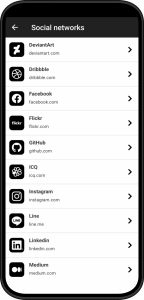
In the “Social Network” section, select the social media network you want to link to your NFC card. Choose from popular platforms like “Twitter”, “Telegram”, “Instagram” or “Facebook”
Step 6:
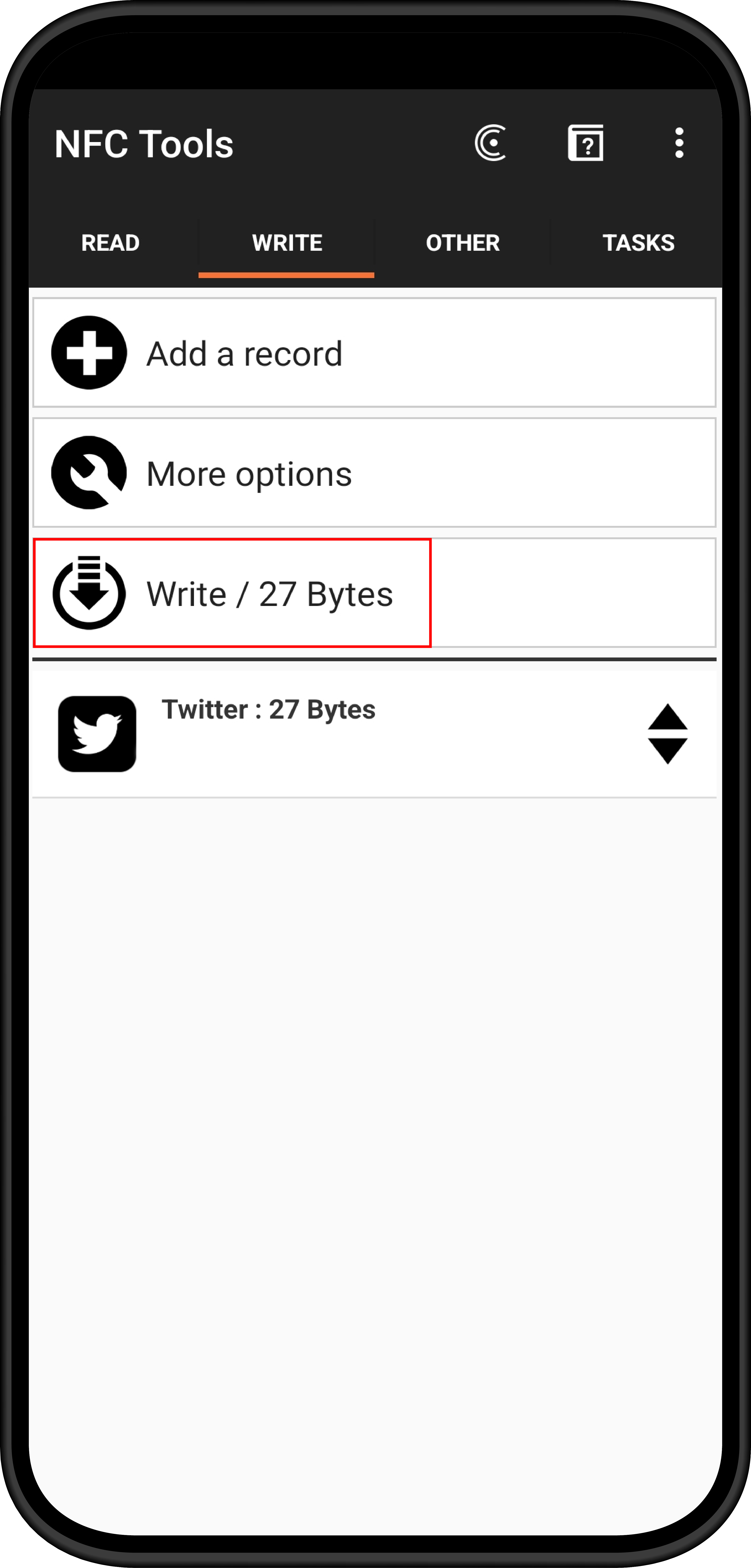
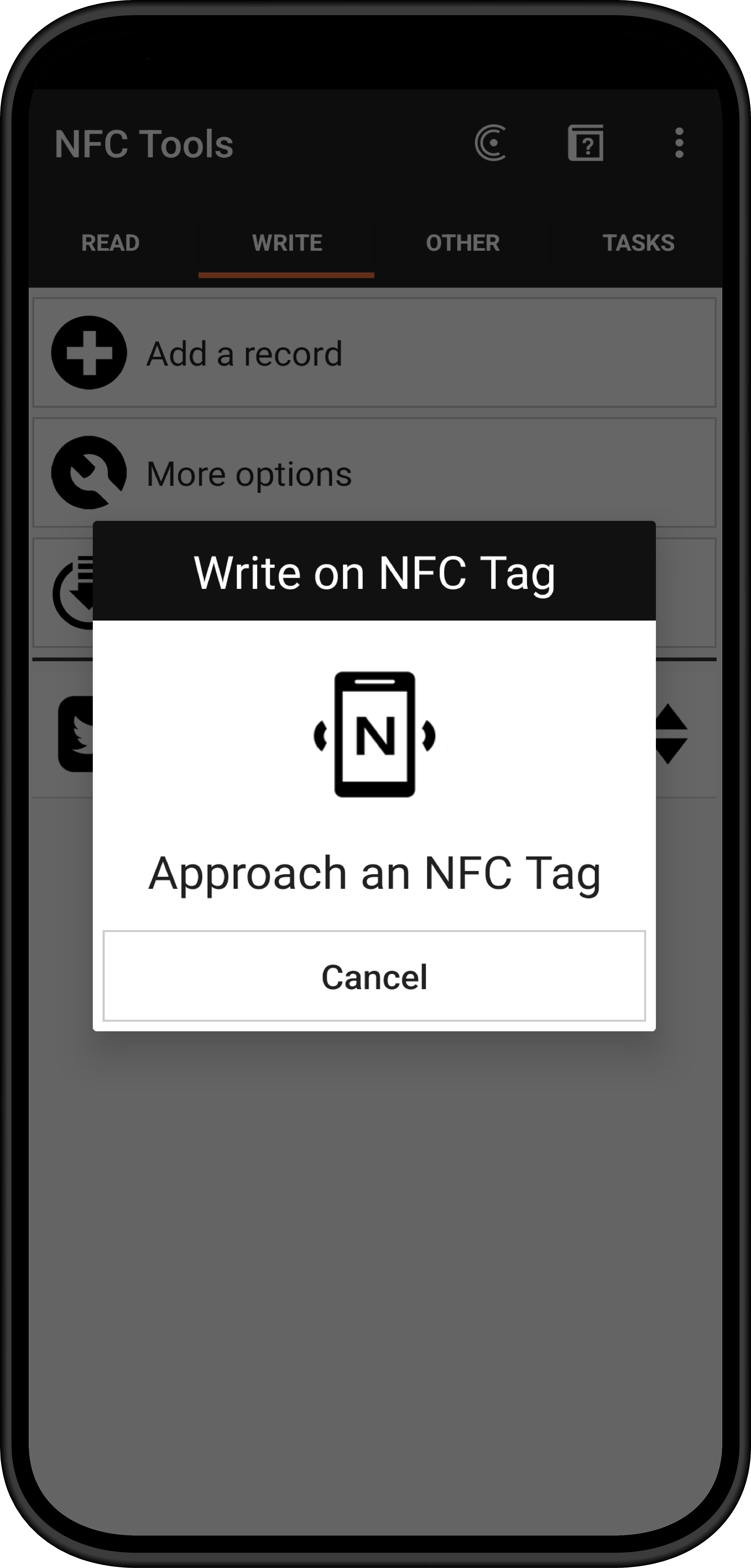
Once you’ve chosen the type of platform and filled in the details, continue by clicking “OK.” Then, take your smartphone and press the “Write” button. Position your NFC card close to the device, and wait for it to encode onto the card. With this your card should be ready to go!
Need more help?
Approach a staff member
We’ll help you if you have any problems!